Guide
How to Download a DWG Viewer for Desktop and Open a Drawing
Guide updated:
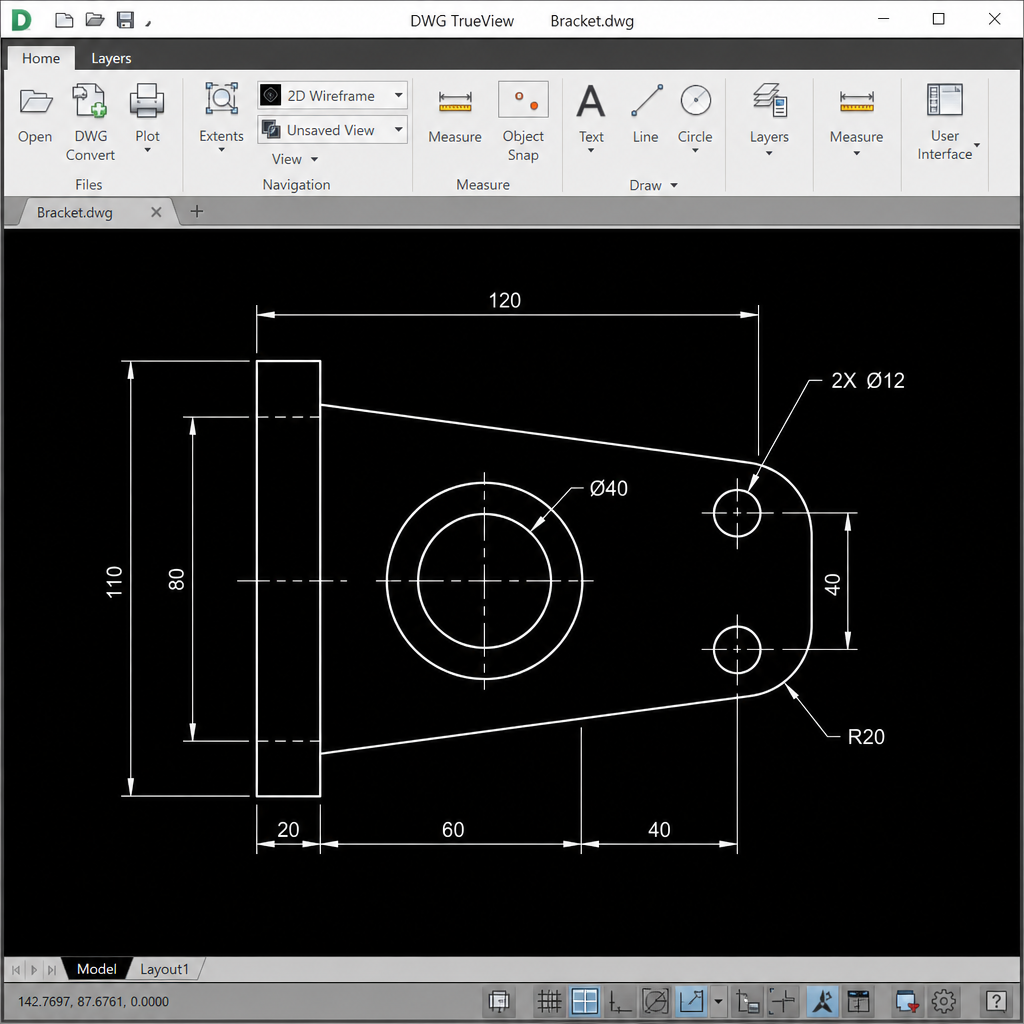
Autodesk DWG TrueView is a free desktop DWG file viewer for opening and reviewing drawings without AutoCAD. Available for Windows, it lets you view 2D and 3D designs and convert DWG files for use with older AutoCAD versions. Start your DWG viewer download from Autodesk’s official product page. (autodesk.com)
What does this free CAD viewer include?
DWG TrueView gives you tools to inspect drawings, produce printed output, and handle file-version compatibility without purchasing drafting software. It is a practical choice when someone sends you a drawing to review rather than revise. Its purpose is viewing, publishing, and conversion—not editing the original design. (autodesk.com)
- DWG and DXF support: Open drawings in either format without installing AutoCAD.
- Drawing navigation: Pan across a plan or zoom into a detail to inspect it more closely.
- Print and PDF output: Produce a paper copy or PDF for review.
- DWG conversion: Convert drawings to earlier file formats when a recipient uses older software. (autodesk.com)
For example, if a supplier sends a component drawing, you can inspect the relevant detail and create a PDF for discussion. If the design itself needs changing, return it to someone using an editing application; TrueView cannot modify drawing geometry. (autodesk.com)
Download and open your first drawing
Use Autodesk’s official DWG TrueView product page for your TrueView DWG viewer download. Check the system requirements before installation, particularly if you are using an older computer or a managed workplace device. The desktop product is offered for 64-bit Windows. (autodesk.com)
- Check compatibility. Review the requirements linked beside the download controls before choosing the installer.
- Choose your download. Select the available release and preferred language on Autodesk’s product page, then follow the installation prompts. (autodesk.com)
- Open your drawing. Launch DWG TrueView and use Open to select your DWG file. You can also double-click a drawing in File Explorer when its file association points to TrueView. (help.autodesk.com)
- Find the relevant detail. Pan and zoom to navigate. Use Zoom Extents to fit all drawing objects into the current view if the drawing appears off-screen. (help.autodesk.com)
Desktop viewing or a browser alternative
Choose TrueView when you want an installed Windows CAD file viewer with DWG conversion. For an online DWG viewer instead, Autodesk Viewer opens supported files in your browser without a desktop installation. It also provides measurement, markup, and sharing tools for online review. (autodesk.com)
Keep your task in mind: viewing a drawing, converting its format, and editing its contents are different needs. TrueView covers viewing and conversion, while design changes require an editing product. Download DWG TrueView from Autodesk to get started with free desktop drawing review. (help.autodesk.com)
A desktop DWG viewer download checklist
- Confirm the publisher from the official source: Use the software publisher's site to confirm the product, publisher, system requirements and release date. Avoid unknown mirrors or bundled installers; managed computers should use IT-approved software sources.
- Verify the installer after downloading: Check that the browser reports a completed download, the file size is plausible and the operating system can verify its signature or checksum. Review optional components and do not run an installer on a production device if its publisher is uncertain.
- Check requirements before installing: Check OS version, processor architecture, administrator rights and disk space against the publisher's requirements. In business environments, confirm licensing, approved software lists and update policy; then inspect a non-sensitive drawing's layouts, fonts and references.
- Do not apply desktop steps to a phone: A desktop installer generally cannot be installed directly on Android or iOS. Phone users should use the official store for their platform, while desktop users select the correct operating-system package. Confirm the device before following installation steps.
- Identify the OS and installer architecture: Choose the package for Windows, macOS or Linux and check processor architecture and minimum OS. Do not run a desktop installer on a phone; consult the publisher's requirements if unsure.
- Follow approval for managed computers: Managed computers may restrict admin rights, licenses and automatic updates. Ask IT for an approved version or internal portal before installing to avoid breaking device policy.
- Verify file associations after installation: Open a test copy and check the picker, layouts and fonts. If the system associates DWG with another app, review default-app settings; installing a viewer does not make it the default.