Guide
How to Open a DWG File on Your Phone Without Internet
Guide updated:
You can open a DWG file on your phone without internet by using a mobile CAD viewer and saving the drawing for offline access first. AutoCAD mobile offers a download-to-offline option, while DWG FastView supports viewing drawings stored locally on your device. The essential preparation is simple: install the app, complete any required setup, and test your drawing before losing your connection. (help.autodesk.com)
How do you open a DWG file on your phone without internet?
To open a DWG file on your phone offline, launch an installed app that supports local DWG viewing, browse to a downloaded drawing, and select it. In AutoCAD mobile, prepare the file using Download to offline; in DWG FastView, open it from local storage. A cloud listing alone is not the same as a downloaded drawing. (help.autodesk.com)
For a dependable setup, follow this sequence:
- Install your viewer while connected. Complete sign-in or activation if your chosen app requires it.
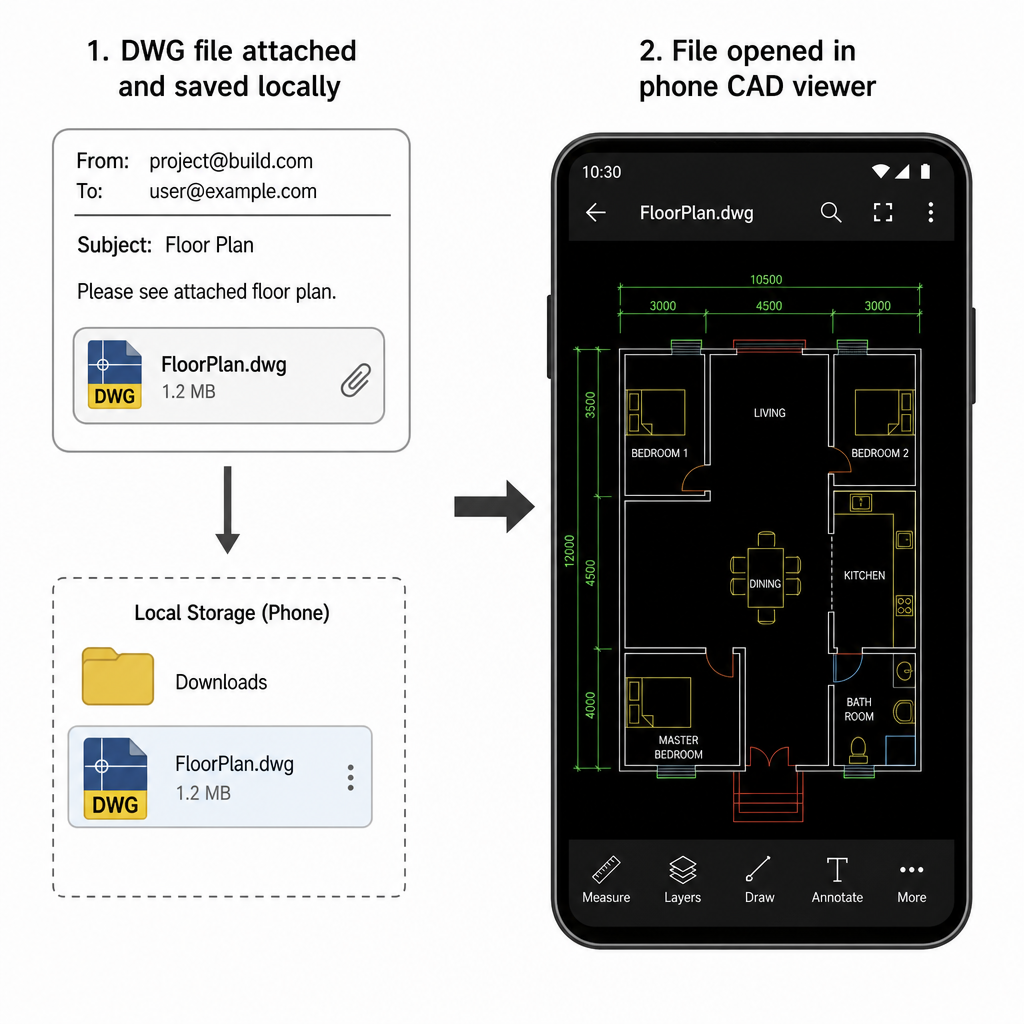
- Save the actual drawing. Download the email attachment or use the app’s offline-download command.
- Open and inspect the file. Check that the areas and notes you need appear correctly.
- Disconnect and reopen it. Enable airplane mode, confirm Wi-Fi is off, then reopen the drawing from local or offline storage.
- Test your intended tools. If you need measurements or annotations, try those too rather than assuming viewing access includes them.
Treat the disconnected test as your final check. Do it with the actual project drawing, not just a sample file supplied with the app. That way, you check both offline access and whether that particular drawing displays usefully.
Choose a DWG file viewer with offline support
DWG is a CAD drawing format that can contain 2D or 3D design information. Autodesk provides different ways to view these drawings, including mobile and browser-based tools, but their workflows are not interchangeable. For this task, focus on a mobile app with documented offline or local-file support. (autodesk.com)
Two options worth evaluating are:
| App | Offline workflow | What to check before leaving |
|---|---|---|
| AutoCAD mobile | Open the drawing’s options and choose Download to offline. | Confirm your account provides the tools you intend to use. |
| DWG FastView | Save the drawing on your device and open it through local file management. | Test your drawing locally; cloud rendering tasks still require connectivity. |
Autodesk documents its offline-download command and notes that full mobile functionality requires an eligible subscription. DWG FastView documents offline viewing and editing for local files, while distinguishing those functions from cloud-dependent tasks. Neither statement means every feature is available under every account. (help.autodesk.com)
When evaluating a DWG file app, start with your real task. For a quick plan check, prioritize readable text, easy navigation, and reliable reopening. If you need to mark changes or take measurements, include those actions in your pre-trip test before committing to a workflow.
Save and open the drawing on Android or iPhone
The practical goal on either platform is to place the drawing where your viewer can access it locally. DWG FastView’s documentation describes downloading attachments on Android and sharing attachments into the app on iOS. Apple also distinguishes files saved locally under On My iPhone from other locations in Files. (blog.dwgfastview.com)
On Android
For DWG FastView, download the attachment from your email or messaging app first. Then open the viewer, go to its local-file area, and browse to the download locati0n. Alternatively, use your phone’s file manager and choose Open with to send the DWG to the viewer. (blog.dwgfastview.com)
After opening it, note the filename and folder so you can find the same copy later. Consider keeping a clearly named project folder instead of relying on a crowded downloads list. Before disconnecting, check the revision shown inside the drawing against the version you expected to receive.
On iPhone
In Apple’s Files app, Browse > On My iPhone identifies locally stored files. For DWG FastView, its attachment workflow uses the Share or Export control to copy the drawing into the app. Use the available sharing option for your installed viewer, then verify that the imported drawing opens. (support.apple.com)
If you use AutoCAD mobile instead, Autodesk documents opening drawings from local storage, email, or messaging apps after signing in. Its documentation also says opening an email drawing syncs it locally for continued offline work. Complete that preparation while connected, then verify access with your own disconnected test. (help.autodesk.com)
Prepare the complete drawing, not just the DWG
A drawing can rely on external references, or xrefs, rather than containing every visible element inside one file. AutoCAD mobile supports linked DWG drawings and image references. Because those references remain linked to their source files, include them in your preparation instead of assuming the main drawing contains everything. (help.autodesk.com)
Ask the sender for a complete drawing package when the plan depends on other files. Autodesk recommends its desktop eTransmit feature for packaging complex drawings and their supporting files. Before heading offline, compare the phone view with a known-good version and check for missing backgrounds, details, or images. (help.autodesk.com)
Text deserves a separate check. Autodesk identifies missing fonts as a cause of garbled or incorrectly displayed text in AutoCAD mobile and documents ways to import SHX fonts. Resolve unreadable room names, dimensions, or notes before relying on the drawing away from your desk. (autodesk.com)
Use this short readiness checklist:
- Revision: Confirm the drawing number and revision inside the file, not only its filename.
- Completeness: Inspect the project areas you expect to discuss, including referenced backgrounds.
- Readability: Zoom into dimensions, symbols, and important notes.
- Offline access: Reopen the file with both cellular data and Wi-Fi unavailable.
- Fallback: Consider carrying a locally saved PDF of the approved sheets for visual reference.
Why won’t a downloaded DWG open offline?
A downloaded drawing may fail because the viewer is looking at a cloud copy rather than the local file, or because the drawing exceeds the phone’s available memory or is damaged. DWG FastView documents local downloads as the basis of offline access and identifies memory limits and corruption among drawing-opening problems. Start by checking the file locati0n, then investigate the drawing itself. (blog.dwgfastview.com)
The app still asks for a connection
Return to the viewer’s local or offline file area and select the downloaded copy directly. In AutoCAD mobile, check that you used Download to offline for that drawing. In DWG FastView, use its local-file workflow rather than selecting an undownloaded cloud drawing. (help.autodesk.com)
The drawing crashes or never finishes loading
Try closing background apps and restarting the phone, then reopen the local drawing. DWG FastView recommends these steps for memory-related failures and suggests desktop repair for corrupted files. If the problem persists, ask the sender to check the source drawing rather than repeatedly downloading the same problematic copy. (blog.dwgfastview.com)
The file opens, but important content is missing
Check referenced drawings and images first, then investigate missing fonts if text appears incorrect. These are separate dependencies, so successfully opening the main DWG does not complete your inspection. Avoid treating an incomplete display as evidence that the original design lacks those details. (help.autodesk.com)
Keep offline review simple and deliberate
Once your DWG viewer app opens the file, use pan and zoom to inspect the relevant area before doing anything more involved. AutoCAD mobile documents these navigation gestures alongside measurement and editing tools. If you plan to measure, check the drawing’s unit settings and available object snaps first. (help.autodesk.com)
For review-only visits, avoid unnecessary edits to the source drawing. If changes are part of your task, agree beforehand on how you will identify the working copy and return it to the team. Keep the original available until you have checked the revised file.
The reliable way to open CAD files without internet is to prepare the exact drawing and test the exact workflow you will need. Choose a suitable viewer, save the drawing locally, inspect its supporting content, and reopen it while disconnected. That rehearsal is the most useful final step before taking your phone into the field.