Guide
How to Export a DWG to PDF With Markup on Your Phone
Guide updated:
To export DWG to PDF on your phone, open the drawing in a compatible CAD app and use its PDF plotting option; AutoCAD mobile calls this Plot to PDF. Then open the exported PDF in a markup app to add review notes before sharing. This workflow separates drawing output from feedback and gives you a clear checkpoint before anything leaves your phone. (autodesk.com)
How do you export a DWG to PDF with markup on your phone?
The most straightforward approach is to export the drawing first, then annotate the resulting PDF. In AutoCAD mobile, use Options > Plot to PDF, choose your output settings, and save the file. Open that PDF in a supported annotation app, add your comments, and check the saved copy before sending it. (autodesk.com)
This walkthrough uses AutoCAD mobile to export the drawing. Open the exported copy in a PDF reader for review. In Acrobat on iPhone, check which commenting tools are available for that file before adding a note or drawing a line. (Adobe’s guide to commenting on iPhone)
Think of the handoff as three separate jobs:
- Prepare: Confirm the drawing revision and sheet you intend to review.
- Export: Create a clean PDF with the correct content and page setup.
- Annotate and verify: Add actionable notes, save, and reopen the outgoing file.
Prepare the drawing before PDF conversion
Before you convert DWG files, confirm that you are working from the intended revision. Compare the filename and title block with the drawing reference provided by your team. If they disagree, resolve that mismatch before adding comments.
Next, decide whether the recipient needs a complete sheet or a focused detail. AutoCAD mobile can plot an existing layout or the current display in model space. A prepared layout is generally the better starting point for a formal sheet; a model-space view can suit a quick discussion about one area. (help.autodesk.com)
Use this preparation checklist:
- Revision: Match the drawing number and revision to the review request.
- Scope: Choose the full sheet, multiple layouts, or a specific detail.
- Context: Keep identifying information visible, especially when reviewing a cropped area.
- Purpose: Decide whether the PDF is for informal feedback or a controlled project handoff.
- Destination: Choose a project-approved folder and sharing method before exporting.
For example, if you are flagging a doorway conflict, include enough surrounding plan information to locate it. A tight crop without room names or grid references may leave the reviewer guessing. Prefer a slightly wider view and a precise callout.
Export the PDF from AutoCAD mobile
With the drawing open, access Options in the upper-right corner and select Plot to PDF. Choose your settings, then tap Plot to generate the document. (autodesk.com)
Work through the output settings deliberately:
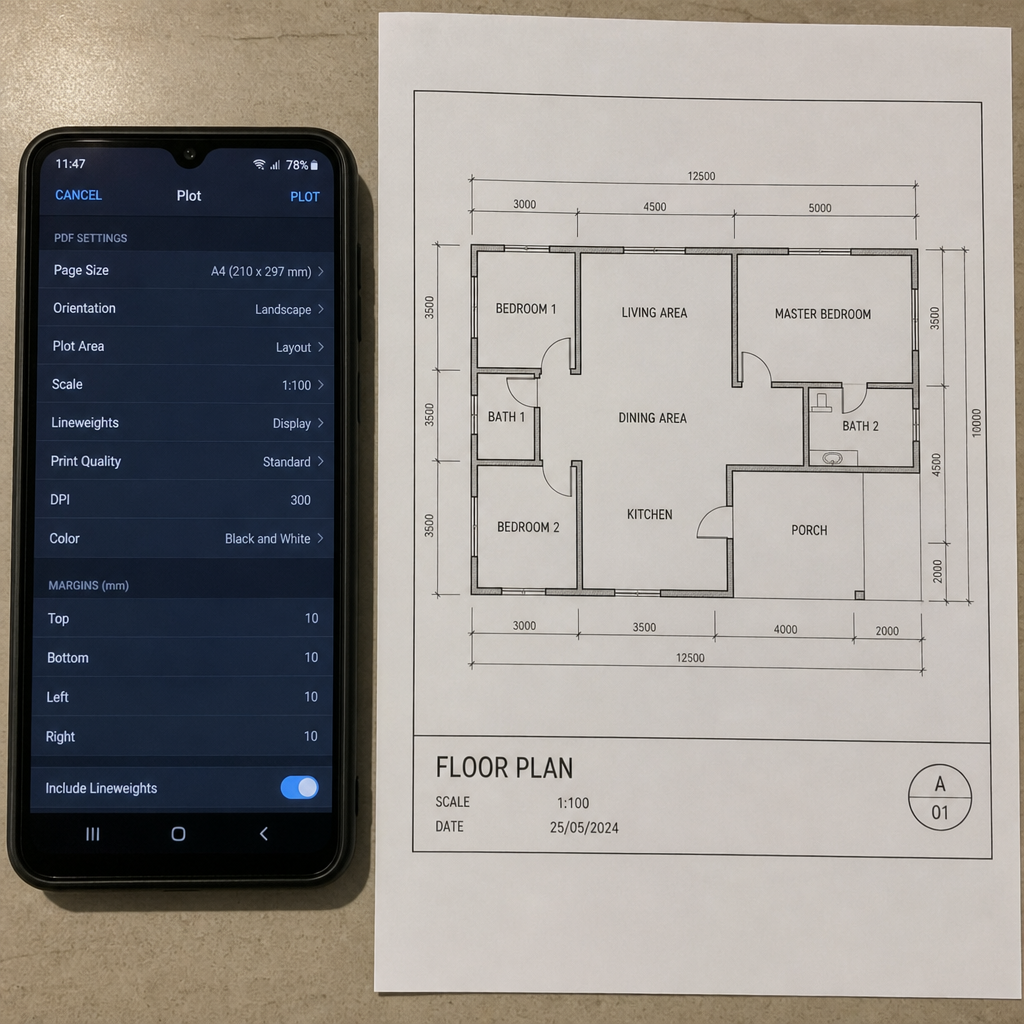
- Choose the paper size. Use the intended sheet size rather than accepting an unfamiliar default.
- Set orientation. Select portrait or landscape to match the drawing.
- Choose what to print. Model-space output uses the current display; paper-space output offers Current Layout or All Layouts.
- Choose a plot style. Available choices include monochrome and color-related styles.
- Generate and save. When processing finishes, use the notification to share the PDF or save it to your device. (help.autodesk.com)
Save a clean export before annotating. Use distinct filenames, such as Level-01_Review-Base.pdf and Level-01_Review-Markup.pdf, so you can identify each version. Treat these as naming examples, not a replacement for your project’s document-control rules.
Keep sheet size and drawing scale separate
Paper size describes the PDF page; drawing scale describes how the design is represented on that page. AutoCAD mobile scales model-space exports to fit. Paper-space layouts plot at 1:1 relative to the layout paper setup, so that setting should not be confused with a model viewport’s drawing scale. (help.autodesk.com)
If a drawing must carry a specified scale, start with a correctly prepared layout rather than treating a fitted model-space export as a scaled deliverable. Ask the drawing author to confirm the layout setup if you cannot verify it yourself. For a quick field-review detail, make the intended use explicit in your handoff message.
Before proceeding, inspect the exported sheet at two levels: the whole page for composition, then a close view for dimensions and notes. Check that the title block is present and nothing important sits against a cropped edge. This is your chance to reject a poor export before spending time marking it up.
How do you keep markup visible in the shared PDF?
Add your feedback directly to the exported PDF, save the annotated version, and reopen the exact file you plan to share. If your PDF app offers a flattened-copy option, consider it for a final review snapshot while retaining an editable original. Acrobat on iOS supports sharing a flattened copy that locks comments, markups, and form fields against ordinary annotation editing. (helpx.adobe.com)
Add clear annotations on iPhone or Android
Open the exported PDF in Acrobat on iPhone and select the commenting tools. Tap the location to leave a written note, or draw around the area to be changed. Save, close the document and reopen the copy you intend to send. Check that the note points to the right place. (Adobe’s guide to commenting on iPhone)
In Acrobat mobile, use the available commenting or drawing tools. Adobe documents color and line-width controls for drawings, plus tools for managing comments. Confirm account and subscription requirements for the particular feature you intend to use. (helpx.adobe.com)
For useful review notes, follow these habits:
- Identify the locati0n: Reference a room, grid, sheet detail, or nearby dimension.
- Describe the issue: Replace “fix this” with a specific observation or question.
- Separate observation from instruction: Label an unverified concern as “confirm” rather than presenting it as an approved change.
- Keep the drawing readable: Place notes outside dense geometry and use pointers where available.
- Number related comments: Make it easy to refer to individual items in a follow-up message.
For example, “Confirm door swing at Storage 104; possible cabinet conflict” gives the reviewer both a locati0n and a task. Avoid writing an unverified replacement dimension over the original. Keep proposed changes visibly distinct from issued drawing information.
Distinguish PDF markup from CAD feedback
AutoCAD’s Trace feature provides a separate environment for feedback without altering the existing drawing. That is a different collaboration workflow from annotating an exported PDF. If your notes already exist in a Trace, check the generated PDF rather than assuming the CAD feedback and PDF deliverable are interchangeable. (help.autodesk.com)
Check the outgoing file, not just the working view
Before sharing, close the annotation session and reopen the saved PDF. Inspect the actual attachment or saved copy, not only the document still open in your editor. Make this a repeatable final check:
- Pages: Confirm the expected sheet count and order.
- Drawing: Check borders, title blocks, dimensions, and small text.
- Markup: Verify that every intended note is visible and readable.
- Status: Remove abandoned comments or label unresolved items clearly.
- Handoff: Include the drawing revision, review purpose, and requested next action.
If content is missing, return to the drawing and check your selected layout or model-space view. AutoCAD mobile limits model-space output to the current display. Re-export the base before rebuilding comments on an incomplete sheet. (help.autodesk.com)
Where does DWG TrueView export to PDF fit?
DWG TrueView export to PDF is a Windows desktop workflow, not a native phone workflow. It can create PDFs from DWG files and publish drawing layouts. If a colleague uses it to prepare your base PDF, you can continue the review on your phone without repeating the CAD conversion. (autodesk.com)
Do not confuse that with export PDF to DWG, which reverses the direction. Autodesk warns that DWG-to-PDF output loses information and precision, and PDF import does not restore the original drawing perfectly. Keep the source DWG for future CAD edits rather than relying on a round trip through PDF. (help.autodesk.com)
A dependable mobile handoff
For your next CAD to PDF review, follow one sequence: verify the drawing, export a clean base, add specific feedback, and reopen the outgoing copy. Keep the DWG, clean PDF, and marked-up PDF clearly distinguished. The final check—not merely a successful export—is what makes the handoff ready to send.