FEATURES
From first look to final export.
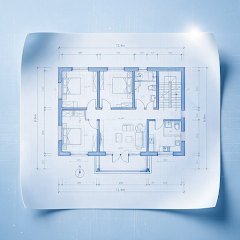
Open DWG / DXF, focus on the right content, check dimensions, record comments and save your review.


Android / iOS · Check the relevant store for compatibility and features

See the whole drawing. Then look closer.
Pan, zoom and fit the drawing to understand the overall layout before checking a particular detail.
- Open DWG and DXF drawings locally
- Switch between the file’s Model and Layout views
- Return to a working file through recent history

Focus on the content you need.
Adjust visible layers in a dense or multidisciplinary drawing to make the current check easier to follow.
- Show and hide individual layers
- Isolate a layer to focus on relevant content
- See the color and entity count of each layer

Choose the right way to measure.
Length, continuous, area and angle modes cover everyday checks. Results stay together in the measurement panel for review.
- Length, continuous, area and angle modes
- Endpoint / center snapping, scale and precision settings
- Measurement history, undo a point and clear results

Give each comment a clear location.
Place a mark on the area you want to discuss so others can see where to look and what needs attention.
- Five markup tools, seven colors and adjustable width
- Undo, inspect the annotation list or clear marks
- Include annotations in PDF, PNG or DXF exports

DRAWING CONVERSION
Turn images and PDFs into usable DXF files.
Take a photo or choose a PDF, calibrate its dimensions, then convert it to DXF and continue viewing, measuring and annotating.
- Scan an image to DXF: take a photo or choose one from your photo library
- Convert a PDF to DXF: parse page by page, with cancellation at any time
- Two-point dimension calibration in four units

EXPORT YOUR REVIEW
Take the drawing. And your comments.
Choose PDF, PNG or DXF, include markup if needed and save to a location you select. Keep using the result after your mobile review.
- Export as PDF, PNG or DXF
- Choose whether to include drawing markup
- Save through the Android or iOS system file picker

Locate and search
Mark coordinates, find text and use drawing bookmarks.

Drawing properties
See entities, layers, layouts and drawing extents together.
GOOGLE PLAY · APP STORE
Open your next drawing on your phone.
Install CAD Assistant to view, measure, mark up and export locally.
Check the relevant app store for device compatibility, features and installation requirements