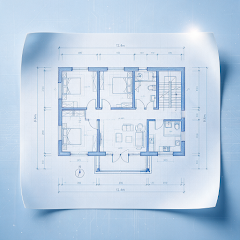
Guide
How to View DXF Files Online Steps and Viewer Considerations
Guide updated:
You can view DXF files online by opening a compatible browser-based viewer, selecting your drawing, and waiting for it to load or process. The important part is checking that the service supports DXF viewing—not just file storage—and confirming the drawing’s units before interpreting measurements. This article explains the workflow, the viewer features worth checking, and a practical review routine. (help.autodesk.com)
How do you view DXF files online?
To view DXF files online, choose a service that explicitly lists DXF as a viewable format, follow its file-opening instructions, and inspect the resulting drawing. For upload-based services, allow time for processing before reviewing the design. Autodesk Viewer, for example, converts uploaded designs into viewable representations rather than opening them as editable source drawings. (help.autodesk.com)
Use this sequence to keep the review organized:
- Confirm the file and revision. Ask the sender which drawing you should review. Keep the original unchanged and note any revision identifier supplied with it.
- Check viewing support. Look for .dxf in the viewer’s supported formats. Do not assume that accepting an upload means the service can display its contents. (help.autodesk.com)
- Review data-handling requirements. Before selecting the file, check whether your organization permits that service and whether the drawing may be shared externally.
- Open or upload the drawing. Follow the service’s instructions, including any account requirements. Autodesk Viewer requires an Autodesk account to start uploading designs. (help.autodesk.com)
- Wait for the view to become available. In an upload-based workflow, distinguish successful transfer from successful processing. Autodesk’s documentation treats these as separate stages. (help.autodesk.com)
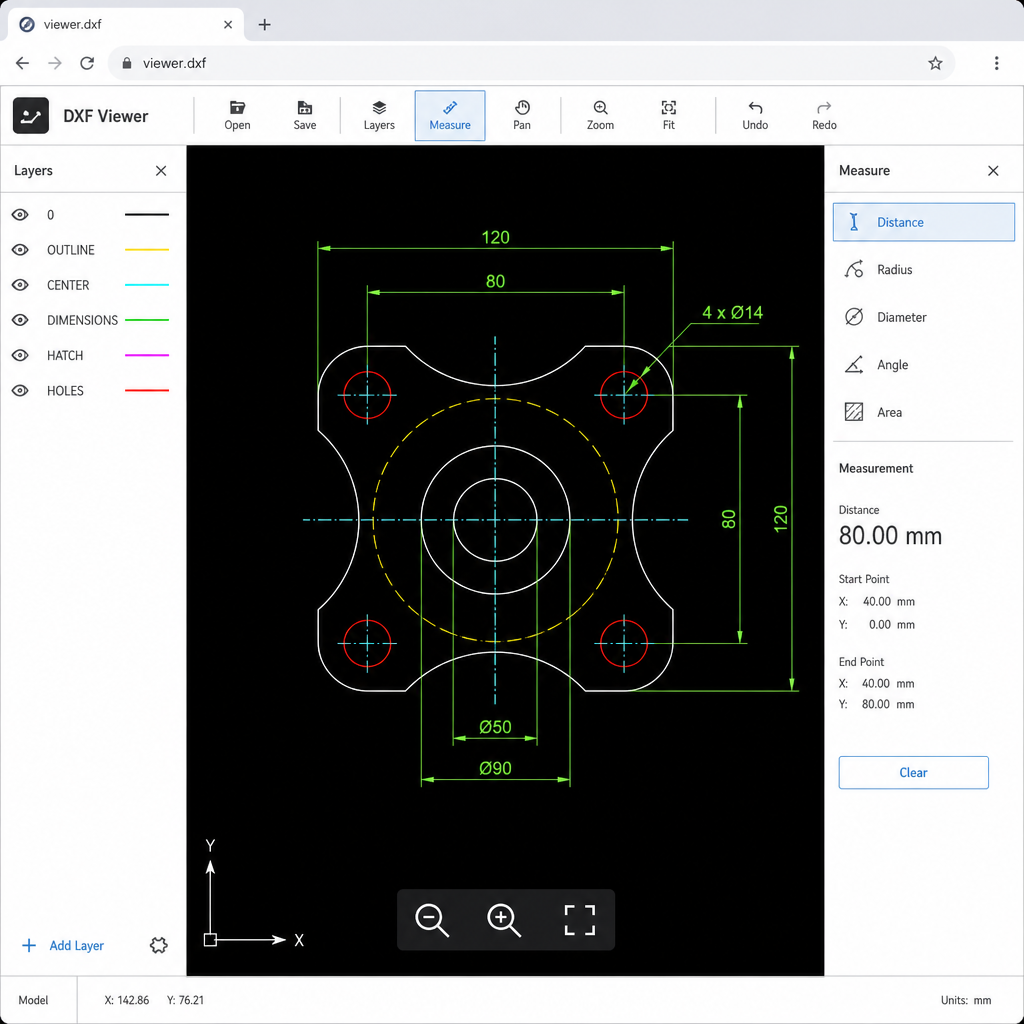
- Inspect before measuring. Check the overall drawing, its labels, and the units shown in the viewer. Compare a known dimension before recording other distances.
For your first review, choose one clear objective: identify a component, check a layout, or locate an area requiring feedback. Finish that task before exploring every control. Record uncertainties separately so an unfamiliar interface does not turn a quick review into an accidental approval.
What a DXF file contains
DXF stands for Drawing Interchange Format. It is used to transfer drawing data between applications and can exist in either ASCII text or binary form. That distinction matters when checking compatibility: ask whether the viewer supports the particular DXF file you received, rather than relying only on the extension. (help.autodesk.com)
A DXF is more than a picture of a drawing. Autodesk’s format documentation describes separate sections for information such as header variables, tables, block definitions, and graphical entities. During review, assess both the visible geometry and the information needed to interpret it, rather than treating a recognizable outline as proof that everything is present. (help.autodesk.com)
Ask the sender for a reference PDF or screenshot when appearance is important. Use it as a visual cross-check, not as a substitute for confirming dimensions. If the two views disagree, flag the difference and ask which representation should govern the review.
What should you check in an online DXF viewer?
When choosing an online DXF viewer, check explicit format support, navigation controls, measurement settings, sharing permissions, and data-handling terms. Match those checks to your task: a quick visual inspection and a documented design review need different acceptance criteria. Browser viewers can include measurement, markup, and sharing tools, but verify the particular service rather than assuming feature parity. (autodesk.com)
Compatibility and readable presentation
Start with a representative, nonconfidential test drawing. Include the elements you actually need to review, then compare the result against a reference supplied by its author. Check text, dimensions, outlines, and any relevant drawing views before committing a project to that workflow.
For an online CAD viewer that you will use across projects, check each required format separately. Autodesk’s file documentation distinguishes files supported for storage from files supported for viewing. A broad upload policy is therefore not enough evidence that you can view CAD files in every format your team exchanges. (help.autodesk.com)
Navigation and review controls
Test whether you can move comfortably between the whole drawing and a small detail. If your task requires layers, object information, or markups, include those actions in the trial. Some browser platforms document layer controls and metadata access as dependent on the file type and underlying viewing capabilities. (sharecad.com)
Also check whether display adjustments help you read the drawing. Autodesk Viewer, for example, provides background-color, navigation, display-unit, and precision settings for 2D files. Treat these as viewing controls, and keep a note of any settings that affect your review. (help.autodesk.com)
Access and privacy requirements
Before using any DXF file viewer for client or proprietary work, read its privacy, retention, and sharing documentation. Ask your project owner or IT team to resolve anything unclear. Avoid treating convenience, a familiar interface, or a successful upload as permission to use a service.
Use this approval checklist:
- Processing: Establish whether the file leaves your device and which providers process it.
- Storage: Check retention periods, deletion options, and treatment of generated previews.
- Access: Confirm who can open a shared view and whether authentication is required.
- Distribution: Check download permissions and whether links can expire or be revoked.
- Project rules: Verify that client agreements and internal policies permit the workflow.
Can you trust measurements from an online viewer?
Treat viewer measurements as provisional until you have confirmed the drawing’s intended units, selected the correct geometry, and checked a known distance. DXF header information can specify units, including a unitless setting, while viewer interfaces may offer their own display-unit and precision controls. A numerical result alone is not enough to establish the intended real-world size. (help.autodesk.com)
For example, if the author identifies one edge as 100 millimeters long, measure that same edge first. If the result differs, stop and investigate rather than adjusting settings until the number merely looks plausible. Ask the author to confirm the intended units and the exact endpoints.
Where calibration is available, follow the service’s instructions and use an independently confirmed distance. Autodesk documents calibration workflows that use two points and a known dimension. For fabrication, installation, or another consequential decision, request confirmation from the responsible designer instead of relying solely on your browser review. (help.autodesk.com)
A practical routine for display and loading problems
If you cannot open DXF files in your chosen service, investigate systematically rather than uploading the drawing to several unfamiliar websites. Keep the original, record the error message, and change one condition at a time. That gives the sender or support team a clearer account of what happened.
Use the following checks as a troubleshooting plan:
| Symptom | Next check |
|---|---|
| Upload finishes, but no drawing appears | Check whether processing is still running or has failed. |
| The service rejects the file | Recheck DXF support, documented limits, and the file supplied by the sender. |
| The view looks empty | Try the viewer’s fit-to-view command, if available, before assuming the drawing has no content. |
| Details appear absent | Compare the view with the author’s reference and identify exactly what is missing. |
| Measurements disagree | Reconfirm units, endpoints, and the known reference distance. |
These checks distinguish a display problem from an unsupported or unsuccessful viewing workflow. Autodesk documents separate upload and processing checks, while its viewer documentation describes fit-to-view navigation. Neither a completed upload nor an empty initial screen should end your investigation. (help.autodesk.com)
If the problem remains, send the author the filename, viewer name, error text, and a screenshot that is approved for sharing. Ask for a verified replacement or an alternative review format. Avoid requesting a conversion without explaining which part of the original failed.
Keep the review focused and verifiable
To view DXF online effectively, define what you need to check before choosing the tool. Test compatibility, confirm permission to use the service, and validate units before relying on measurements. Finish by recording the file revision, the areas reviewed, and any unresolved discrepancies so the next person understands the scope of your review.
Checks before and after viewing a DXF online
- Check whether the file is suitable for online handling: DXF versions, entity types and encodings can affect compatibility. If a drawing contains client data or restricted coordinates, review the service's processing terms and your policy; use an approved local tool if unsure.
- Prepare a shareable copy before upload: Keep only the pages and objects needed, remove personal or sensitive details and save a copy. Check references and embedded content for extra information, and confirm permission before sending the file.
- Check units and geometric integrity: Check units, origin, closed outlines and arcs against the source CAD or known dimensions. Online preview is useful for a quick look, but does not prove suitability for fabrication, survey or design exchange.
- Manage the uploaded copy after use: Find out how long the service retains files, who can access them and how deletion works. Remove uploaded copies and browser downloads that are no longer needed; ask the provider or administrator if handling is unclear.
- Compare online preview with the local source: Compare drawing number, units, layers and key outlines with the source DXF. Browser rendering can depend on zoom and font support; review critical objects separately.
- Keep track of the source and result: Record the uploaded filename, revision and service URL so versions are not confused. Check the downloaded format, page range and reopenability before delivery.
- Remove access that is no longer needed: If the service offers deletion or session cleanup, follow its instructions. Check retention requirements before clearing local downloads and follow the team's data policy.