Guide
Best Free DWG Viewers What to Compare Before You Choose
Guide updated:
The best free DWG viewers are worth comparing by task: opening a drawing, checking dimensions, printing sheets, or sharing feedback. Autodesk DWG TrueView, Autodesk Viewer, and ShareCAD offer different combinations of desktop access, browser convenience, and review features. This article explains their key differences and gives you a practical checklist for choosing a viewer that fits your files and workflow. (autodesk.com)
What should you look for in a free DWG viewer?
Look for a free DWG viewer that displays your actual drawings correctly, includes the tools your task requires, and meets your organization’s file-handling rules. Start with compatibility and access, then test measurement, printing, and sharing if you need them. Treat a successful file opening as the beginning of your evaluation, not the finish line.
Before comparing products, write down your essential requirements:
- Your device: Confirm support for your operating system or browser, including any installation restrictions.
- Your drawing package: Test the main DWG alongside any referenced drawings, images, and supporting files supplied by its author.
- Your review task: Separate basic viewing from measuring, commenting, printing, converting, and editing.
- Your information rules: Establish whether the drawing may be uploaded to an external service.
- Your output: Decide whether you need an on-screen check, a printable sheet, or feedback another person can revisit.
Use these requirements to eliminate unsuitable options before spending time learning an interface. A viewer that handles one important task reliably is a better choice than a feature-heavy application that misses your essential requirement.
Three free DWG viewers worth comparing
These options provide useful starting points rather than a universal ranking. Their documented capabilities differ, so choose a shortlist around the work you need to complete. The comparisons below draw on vendor documentation, not an independent performance benchmark. (autodesk.com)
| Viewer | Good starting point for | Important consideration |
|---|---|---|
| Autodesk DWG TrueView | Windows desktop viewing, plotting, and DWG version conversion | Requires a Windows desktop installation |
| Autodesk Viewer | Browser-based measurement, markup, and sharing | Uploading your own designs requires an Autodesk account |
| ShareCAD | Browser viewing across several CAD formats | Server-side processing; uploads are limited to 50 MB |
Product capabilities and restrictions above are documented by Autodesk and ShareCAD. Check their current requirements before installing software or uploading project files. (autodesk.com)
Autodesk DWG TrueView for desktop review and conversion
DWG TrueView is Autodesk’s free Windows application for viewing and converting DWG files. Autodesk also documents plotting, PDF creation, and conversion between AutoCAD file formats. That makes it a sensible option to investigate when your work involves reviewing drawings and producing output rather than browser-based collaboration. (autodesk.com)
Before committing, test the installation on your intended workstation and print a representative layout. If conversion matters, work on a copy and ask the recipient to verify the converted drawing. Keep the original file unchanged so you retain a clear reference.
Autodesk Viewer for shared browser reviews
Autodesk Viewer is a free browser application for uploading, viewing, and sharing designs. Its documented tools include distance and angle measurement, markup, and navigation. You need an Autodesk account to upload your designs, while shared design views let stakeholders review a representation without accessing and editing the source file. (help.autodesk.com)
Pay attention to sharing behavior: Autodesk says anyone with the sharing link can access the design. Design views are available for 30 days by default, with an option to extend their availability. Plan around that expiry rather than treating a review link as a permanent project archive. (help.autodesk.com)
ShareCAD for straightforward browser viewing
ShareCAD is a free CAD viewer that supports DWG, DXF, DWF, and several other drawing and model formats. It requires no installation, advertises access across desktop and mobile platforms, and accepts files up to 50 MB. The service states that processing happens on its servers, an important consideration before uploading restricted drawings. (sharecad.org)
Keep the free web service separate from the desktop product advertised alongside it. ShareCAD’s page promotes a separate desktop trial with additional capabilities; do not assume those capabilities belong to the free online viewer. Test your required functions in the web interface itself. (sharecad.org)
Is an online DWG viewer better than a download?
An online DWG viewer is a better fit when browser access and easy review matter most; a desktop download is worth considering when your workflow calls for a locally installed application. Neither approach wins automatically. For example, Autodesk Viewer emphasizes browser collaboration, while DWG TrueView provides Windows desktop viewing and conversion. (autodesk.com)
For an occasional review, begin by testing a browser option with a nonconfidential sample. Check how long uploading and processing take on your connection, then try navigating the drawing on your actual device. Repeat with a more demanding file before recommending it to colleagues.
For recurring desktop work, investigate installation requirements and update procedures before arranging a DWG viewer download. Use the publisher’s official site and ask your IT team to approve the application where required. If offline access is essential, explicitly test that workflow instead of assuming every installed feature works without a connection.
Drawing fidelity matters more than a long feature list
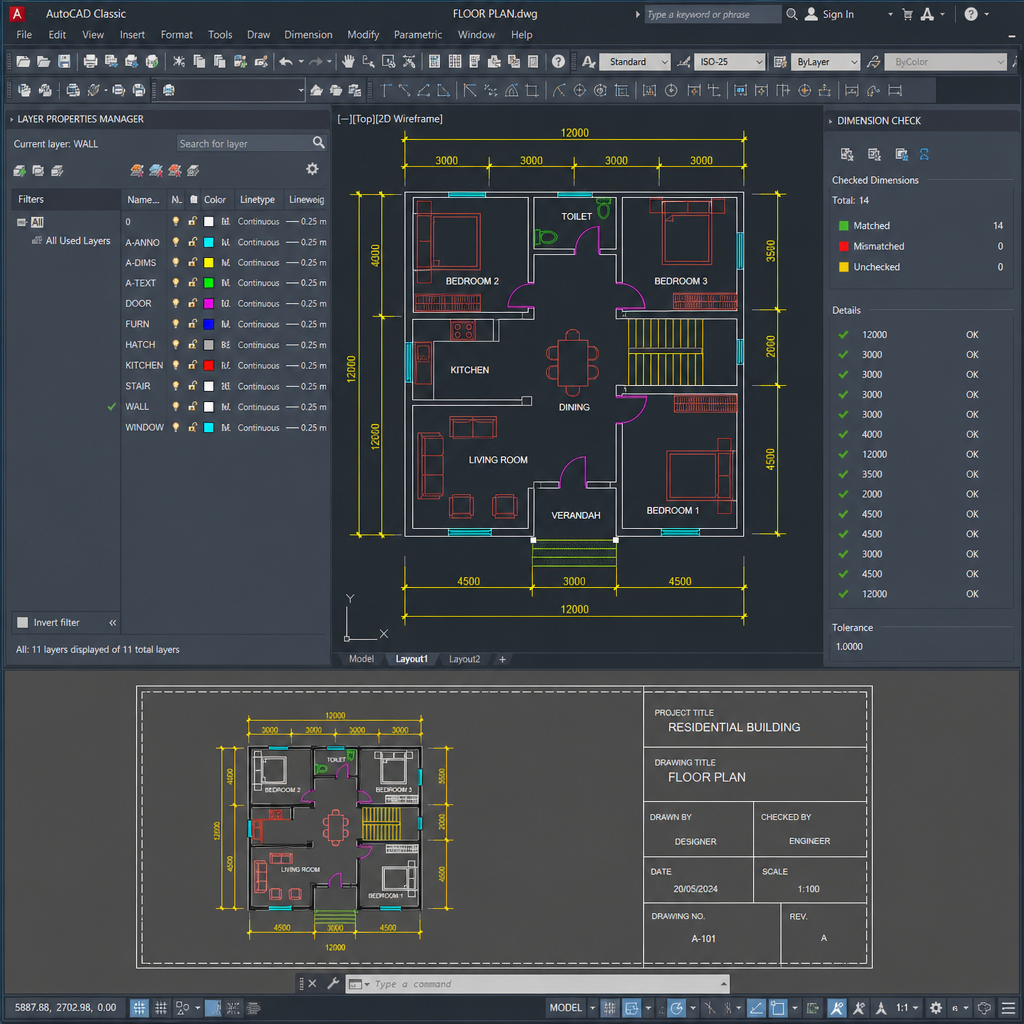
Make visual verification a deliberate part of your trial. Ask the drawing author for an approved PDF or another reliable reference, then compare the same areas in your candidate DWG file viewer. Focus on the information someone will actually use to make a decision.
Inspect text, dimensions, linework, hatches, and sheet layouts. Also ask whether the drawing relies on external references: DWG references and image files can be separate from the parent drawing, so checking the main file alone may not establish that you received everything. Autodesk’s documentation explains these dependencies and the need to resolve missing references. (help.autodesk.com)
Do not resolve an unexplained discrepancy by guessing. Record what looks different, confirm that you have the complete drawing package, and ask the author to help establish the intended appearance. Keep that check separate from judging whether you like the viewer’s interface.
Which review tools do you actually need?
You need only the tools required to complete your review: navigation for visual inspection, measurement for dimensional checks, markup for feedback, and printing or export for deliverables. Editing is a separate requirement. Autodesk’s own viewer lineup distinguishes viewing and review products from tools intended to edit DWGs, so do not treat those functions as interchangeable. (autodesk.com)
Use a short acceptance test rather than relying on feature names:
- Navigate a busy area. Zoom into dense detail, pan across the drawing, and return to the full sheet. Decide whether the interaction is comfortable on your device.
- Check a known dimension. If measuring matters, compare a result against a dimension the author has confirmed. Verify the displayed units before relying on it.
- Make feedback retrievable. Add a sample comment or markup, then reopen it through the workflow your recipient will use.
- Inspect the deliverable. If printing or PDF output matters, check paper size, orientation, scale settings, and legibility in the resulting output.
- Repeat with another file. Include a drawing representative of your more demanding work, not just the easiest sample available.
Score each required task as pass, fail, or needs clarification. Leave optional features out of the final decision unless the essential tasks already pass. This keeps the comparison grounded in work rather than marketing.
Check the boundaries of “free” before committing
For each candidate, verify that the exact workflow you tested remains available without payment. Distinguish a free viewer from a trial, a separate desktop product, or a paid editing application. ShareCAD’s free web service and separately advertised desktop trial illustrate why reading the product labels matters. (sharecad.org)
Review account requirements, upload limits, sharing access, and retention before introducing free CAD tools to a team. Ask who will own uploaded designs and maintain review links. Document the approved workflow so another colleague can repeat it without rediscovering restrictions.
Choose the viewer that passes your real-world test
Start with your device, file-handling rules, and required output, then shortlist the appropriate options. Test a complete drawing package, verify important details, and confirm that recipients can use the result. The right free viewer is the one that completes your review reliably—not necessarily the one with the longest feature list.