Guide
Why Is My DWG Drawing Blank on My Phone
Guide updated:
A DWG drawing that looks blank on your phone may still contain the design: the geometry can be off-screen, hidden by layer settings, dependent on missing reference files, or unsupported by the viewer. A blank screen alone does not prove that your work has disappeared. Start with the view and visibility checks below before asking for a repaired or converted copy. (autodesk.com)
Why does my DWG open but show nothing?
A DWG can open without displaying the expected content because opening the file and rendering every object are different tasks. Autodesk identifies off-screen content, unrecognized objects, missing external references, hidden layers, and file corruption among the causes of empty or incomplete drawings. The useful first distinction is whether the whole screen is blank or only part of the design is missing. (autodesk.com)
Treat the following as troubleshooting clues, not diagnoses:
- An empty canvas: Start with zoom, the selected view, and layer visibility.
- A border or title block without the plan: Check model space and external references.
- Missing equipment, surfaces, or specialist details: Investigate custom-object compatibility.
- Errors, freezing, or repeated failure: Preserve the original and investigate the file itself. (autodesk.com)
Start with a safe, quick check
Before changing drawing content, keep an untouched copy. Use a separate troubleshooting copy for visibility changes, exports, and repairs. Record what happens after each step so you can tell the sender exactly which checks succeeded.
Work through this sequence:
- Confirm the filename and revision. Compare them with the sender’s intended file; do not troubleshoot an accidentally opened empty drawing.
- Fit the drawing to the screen. Look for a zoom-to-extents or equivalent fit control in your viewer.
- Check model space and layouts. Open the sheet the sender expects you to use.
- Review layer visibility. Turn on relevant hidden layers without deleting or moving anything.
- Check reference warnings. Note missing filenames or paths.
- Request a desktop comparison. Ask whether that exact copy displays correctly in its source application. (autodesk.com)
Menu names vary, so use your viewer’s help rather than searching indefinitely for a particular icon. Avoid destructive cleanup while you are still determining whether the problem is simply visibility.
Check the view before changing the drawing
Fit the geometry to the screen
The saved view may point to an empty area rather than the actual design. Zoom Extents is intended to bring the drawing’s overall content into view. If your phone viewer offers an equivalent control, try it before repeatedly pinching and panning. (autodesk.com)
There is an important exception: an object far from the main drawing can make the overall extents enormous. The useful geometry then shrinks to a dot, leaving what looks like a blank screen. If fitting the drawing produces a tiny cluster surrounded by empty space, ask the author to inspect distant objects on desktop; do not delete unfamiliar geometry yourself. (autodesk.com)
Switch between model space and layouts
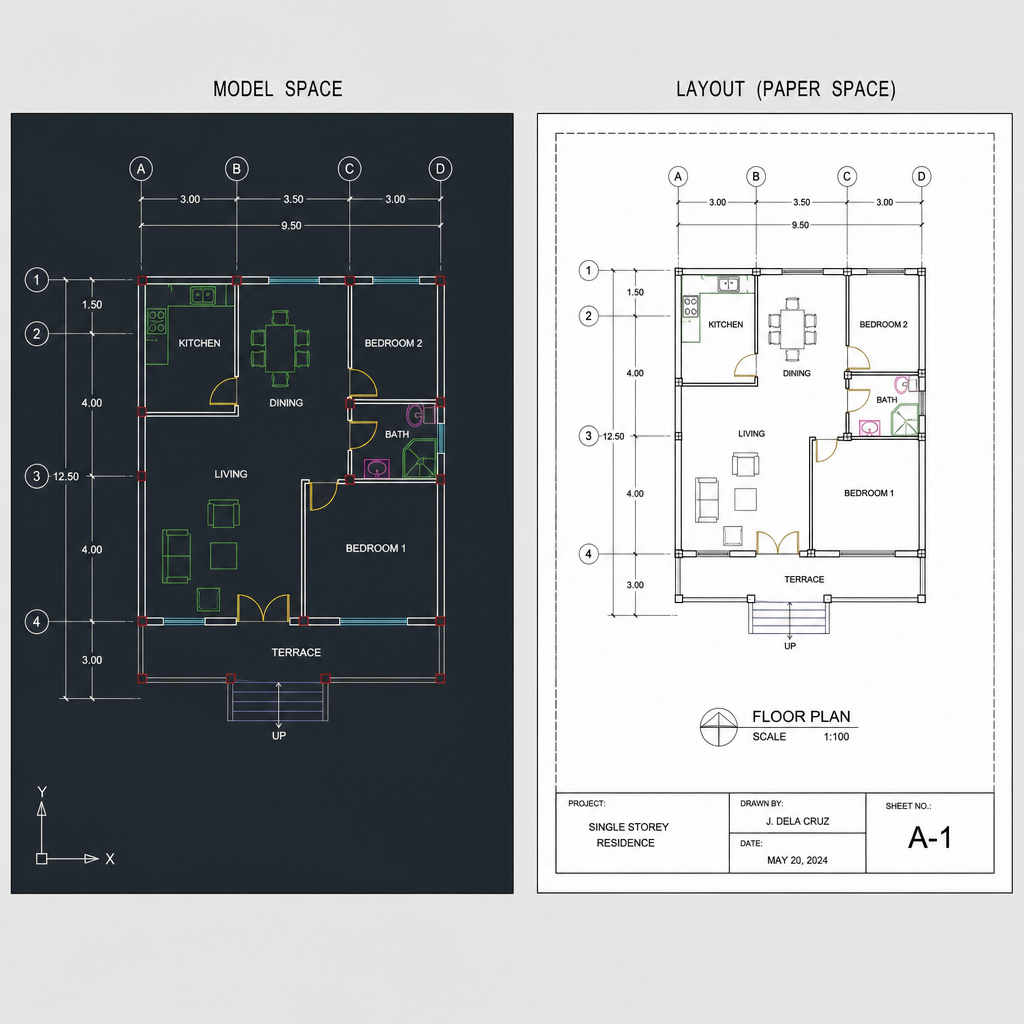
Model space contains the design geometry, while layouts organize drawing sheets with viewports, borders, and annotations. Looking at one does not necessarily show the same presentation as looking at the other. AutoCAD mobile provides a Views palette for switching between model space and the layouts saved in the drawing. (help.autodesk.com)
Ask the sender for the intended layout name, not just “the drawing.” That gives you a specific view to test and avoids guessing which sheet contains the detail you need.
Reveal hidden layers without altering geometry
Layers control groups of drawing objects, so hidden layers can remove substantial parts of a design from view. In AutoCAD mobile, the Layers palette lets you turn individual layers on or off. Locking a layer prevents editing; it is not the same operation as hiding it. (help.autodesk.com)
On your troubleshooting copy, inspect layers associated with the missing content. For example, if you expect a floor plan, look for architectural or floor-related names rather than changing every property indiscriminately. Turn relevant layers on, then check the drawing again.
If model space looks correct but one sheet remains incomplete, ask the author to inspect that layout’s viewport settings. Layers can be frozen in particular layout viewports, making a sheet differ from the overall model. Desktop-side checks may be necessary when your mobile viewer does not expose those controls. (autodesk.com)
Missing references can leave only a border
An external reference, or xref, links another file into the host drawing. The referenced content remains associated with its source file rather than becoming ordinary geometry inside the host. AutoCAD mobile supports attaching DWG and image references, but the needed source files must still be accessible. (help.autodesk.com)
For example, a sheet could contain its title block locally while the building plan comes from a separate DWG. If that reference is missing, you may see the border without the plan. Missing xrefs are a documented cause of absent drawing objects. (autodesk.com)
Ask the sender to check:
- Which referenced DWGs and images the host drawing needs.
- Whether those files were included in the handoff.
- Whether reference paths resolve in the intended viewing environment.
- Whether the shared package opens correctly outside the sender’s usual project folder.
Request a complete drawing package rather than another isolated copy of the same host file. Autodesk also recommends requesting an eTransmit package from the original author when investigating empty drawings. (autodesk.com)
Why does the drawing work on desktop but not my phone?
A drawing can display correctly in its authoring application while another viewer cannot display all its object types. Specialist CAD software may create custom or proxy objects rather than only standard lines, arcs, and text. Successful desktop viewing therefore does not establish that every mobile viewer can reproduce the drawing. (autodesk.com)
Ask which application created the missing objects, especially for civil, building-services, plant, or mechanical drawings. Autodesk documents custom-object visibility issues and options for converting specialist objects into core AutoCAD geometry. However, those conversions can remove object intelligence, so the author should create a separate viewing copy rather than overwrite the working design. (autodesk.com)
A useful request is: “Please send a copy exported for standard DWG viewing and confirm that the missing objects are visible.” Do not assume that choosing an older DWG file version alone will convert custom objects; request the appropriate object-conversion workflow from the source application. (autodesk.com)
Separate an app problem from a file problem
Try a small, known-good DWG in the same app, then test the problem drawing in another approved viewer or on desktop. Use this comparison to decide where to investigate next, rather than immediately concluding that either the phone or the drawing is defective.
- Other drawings work: Prioritize this file’s references, objects, and integrity.
- Several known-good drawings fail: Prioritize the app installation and its supported device requirements.
- The same file also fails on desktop: Ask the author to investigate corruption or recovery. Autodesk documents blank opening, display problems, and missing elements among corruption symptoms. (autodesk.com)
If AutoCAD mobile itself is unstable, Autodesk suggests signing out and back in, followed by reinstalling if necessary. Before either step, confirm that local edits are synchronized or otherwise backed up. Treat reinstalling as an app-troubleshooting step, not a substitute for locating missing references or converting unsupported objects. (autodesk.com)
What should I ask the sender to provide?
Ask for the exact DWG revision, its intended layout, all required external references, and confirmation that the shared copy opens correctly. If compatibility is the issue, request a separate standard-geometry viewing copy. If you only need to read the sheet immediately, request a PDF alongside the DWG. (help.autodesk.com)
You can send this message:
The DWG opens on my phone, but the expected drawing is missing. Please confirm the revision and layout, include the required reference files, and check the shared copy outside your normal project folder. If it contains specialist objects, please provide a standard-geometry viewing copy and a PDF for reference.
The practical takeaway
Finding your DWG drawing blank on a phone is a reason to investigate, not proof of lost work. Check the view, layers, references, and object compatibility before pursuing file repair. Preserve the original throughout, and escalate with specific observations rather than only reporting a blank screen. (autodesk.com)
Checks for a DWG that looks blank on a phone
- Check extents and the active viewport: Fit the drawing extents and confirm whether you are in Model or the intended layout. If the full drawing is visible but the sheet is blank, check the viewport, scale and frozen layers.
- Isolate visibility conditions one at a time: Review layer visibility, frozen and locked states one at a time rather than enabling everything. Check for colors close to the background and mismatched annotation scale. Record the original settings so you can restore them.
- Confirm referenced files were delivered: A DWG can reference external drawings, images, fonts or data. Ask the sender whether dependencies were delivered and check their paths. A missing reference can leave blank areas without meaning that host-file geometry is damaged.
- Cross-check against an output from the same revision: Ask for a PDF or screenshot from the same revision and compare page number, title block and key areas. If multiple devices show blank content despite complete references, submit a safe sample, version and reproduction steps.
- Confirm source and transfer integrity: Compare size and revision and confirm sync is complete. Different sources may contain same-named files with different content; save a separate copy first.
- Check zoom and color contrast: Geometry may be outside the current view or use colors close to the background. Fit extents, inspect layer colors, line weights and viewport, then zoom to the target.
- Do not overwrite a possibly damaged source: Copy the file before testing. If one viewer behaves differently, request a reference PDF or check the same revision in desktop CAD, keeping the source for diagnosis.