Using the tools
Convert an image or PDF to DXF
Choose an image source or a PDF, calibrate dimensions, then convert it to DXF.
Choose a conversion method
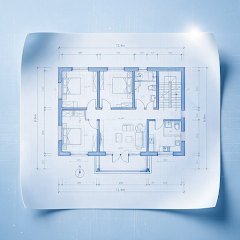
Drawing conversion on the home screen offers two options. Image to DXF supports the camera and photo library. PDF to DXF lets you select a file in the app or use Open with from WeChat, QQ, DingTalk or a file manager. When a PDF is received, confirm whether to convert it to DXF and open it.
Calibrate a known length
Before converting an image, open the scale calibration screen. Select the two endpoints of a known length on the drawing, enter its real length and choose a unit (millimeters, centimeters, meters or inches), then tap “Apply Calibration.” A magnifier helps position points while dragging. Pinch to zoom and pan; calibration applies to the entire current drawing.
Review the converted drawing
Tap “Convert to DXF” and wait for parsing to finish. The drawing opens automatically, where you can view entity and layer counts. Conversion is for viewing and review. Scan quality affects recognition; check critical dimensions before formal use.
Screens and available features depend on the version installed.
